转自:coderwhy,写项目按照这个来啦!
一. 代码规范
1.1. 集成editorconfig配置
EditorConfig 有助于为不同 IDE 编辑器上处理同一项目的多个开发人员维护一致的编码风格。
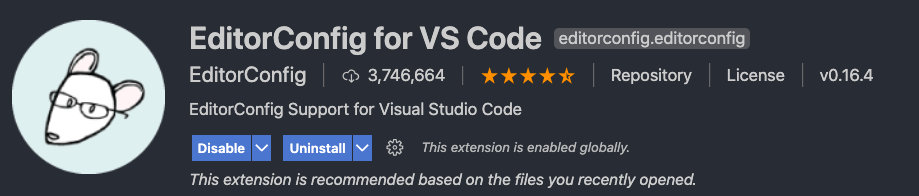
# http://editorconfig.org root = true [*] # 表示所有文件适用 charset = utf-8 # 设置文件字符集为 utf-8 indent_style = space # 缩进风格(tab | space) indent_size = 2 # 缩进大小 end_of_line = lf # 控制换行类型(lf | cr | crlf) trim_trailing_whitespace = true # 去除行首的任意空白字符 insert_final_newline = true # 始终在文件末尾插入一个新行 [*.md] # 表示仅 md 文件适用以下规则 max_line_length = off trim_trailing_whitespace = falseVSCode需要安装一个插件:EditorConfig for VS Code
1.2. 使用prettier工具
Prettier 是一款强大的代码格式化工具,支持 JavaScript、TypeScript、CSS、SCSS、Less、JSX、Angular、Vue、GraphQL、JSON、Markdown 等语言,基本上前端能用到的文件格式它都可以搞定,是当下最流行的代码格式化工具。
1.安装prettier
npm install prettier -D2.配置.prettierrc文件:
- useTabs:使用tab缩进还是空格缩进,选择false;
- tabWidth:tab是空格的情况下,是几个空格,选择2个;
- printWidth:当行字符的长度,推荐80,也有人喜欢100或者120;
- singleQuote:使用单引号还是双引号,选择true,使用单引号;
- trailingComma:在多行输入的尾逗号是否添加,设置为
none; - semi:语句末尾是否要加分号,默认值true,选择false表示不加;
{ "useTabs": false, "tabWidth": 2, "printWidth": 80, "singleQuote": true, "trailingComma": "none", "semi": false }3.创建.prettierignore忽略文件
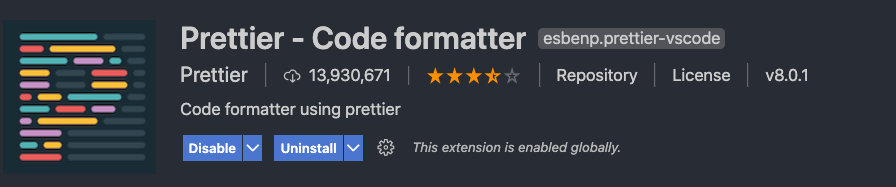
/dist/* .local .output.js /node_modules/** **/*.svg **/*.sh /public/*4.VSCode需要安装prettier的插件
5.测试prettier是否生效
- 测试一:在代码中保存代码;
- 测试二:配置一次性修改的命令;
在package.json中配置一个scripts:
"prettier": "prettier --write ."1.3. 使用ESLint检测
1.在前面创建项目的时候,我们就选择了ESLint,所以Vue会默认帮助我们配置需要的ESLint环境。
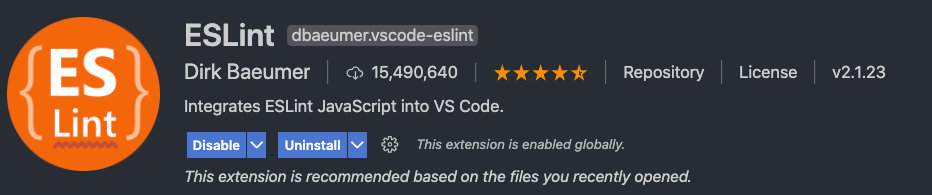
2.VSCode需要安装ESLint插件:
3.解决eslint和prettier冲突的问题:
安装插件:(vue在创建项目时,如果选择prettier,那么这两个插件会自动安装)
npm i eslint-plugin-prettier eslint-config-prettier -D添加prettier插件:
extends: [ "plugin:vue/vue3-essential", "eslint:recommended", "@vue/typescript/recommended", "@vue/prettier", "@vue/prettier/@typescript-eslint", 'plugin:prettier/recommended' ],- 添加忽略规则.eslintrc.js
module.exports = { root: true, env: { node: true, }, extends: [ "plugin:vue/vue3-essential", "eslint:recommended", "@vue/typescript/recommended", "plugin:prettier/recommended", ], parserOptions: { ecmaVersion: 2020, }, rules: { "no-console": process.env.NODE_ENV === "production" ? "warn" : "off", "no-debugger": process.env.NODE_ENV === "production" ? "warn" : "off", "vue/multi-word-component-names": "off", //关闭组件名必须为多个单词 }, }; 1.4. git Husky和eslint
虽然我们已经要求项目使用eslint了,但是不能保证组员提交代码之前都将eslint中的问题解决掉了:
- 也就是我们希望保证代码仓库中的代码都是符合eslint规范的;
- 那么我们需要在组员执行
git commit命令的时候对其进行校验,如果不符合eslint规范,那么自动通过规范进行修复;
那么如何做到这一点呢?可以通过Husky工具:
- husky是一个git hook工具,可以帮助我们触发git提交的各个阶段:pre-commit、commit-msg、pre-push
如何使用husky呢?
这里我们可以使用自动配置命令:
npx husky-init && npm install这里会做三件事:
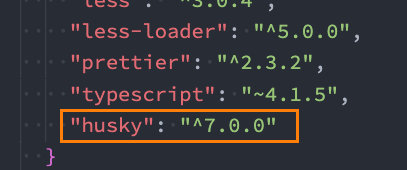
1.安装husky相关的依赖:
2.在项目目录下创建 .husky 文件夹:
npx huksy install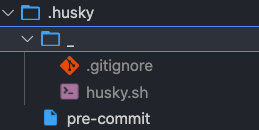
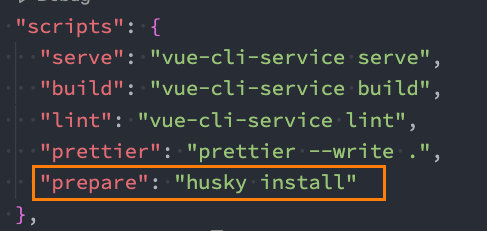
3.在package.json中添加一个脚本:
接下来,我们需要去完成一个操作:在进行commit时,执行lint脚本:
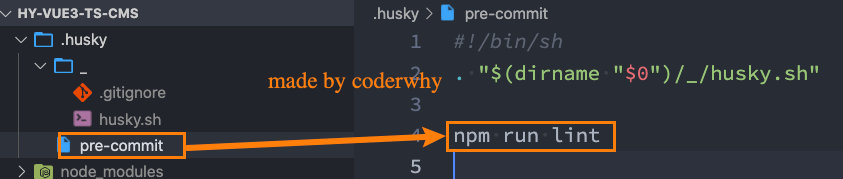
这个时候我们执行git commit的时候会自动对代码进行lint校验。
1.5. git commit规范
1.5.1. 代码提交风格
通常我们的git commit会按照统一的风格来提交,这样可以快速定位每次提交的内容,方便之后对版本进行控制。
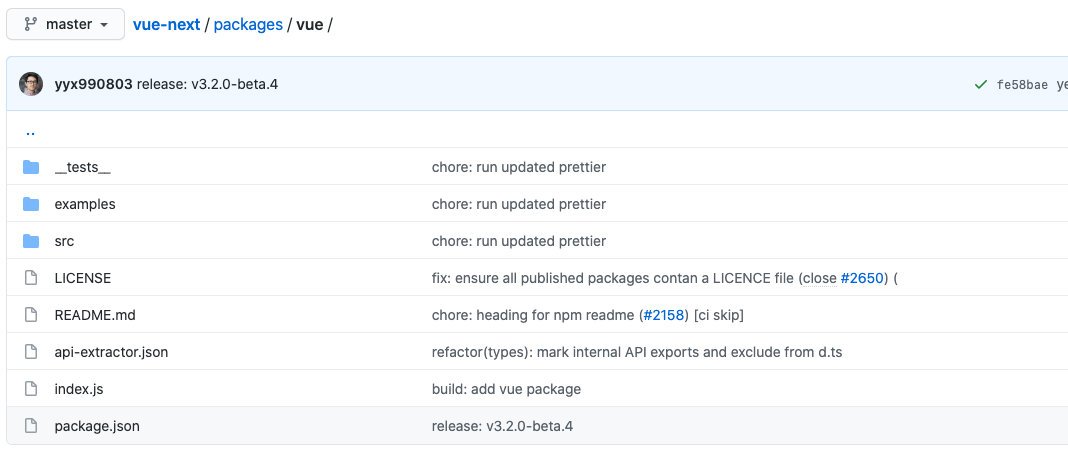
但是如果每次手动来编写这些是比较麻烦的事情,我们可以使用一个工具:Commitizen
- Commitizen 是一个帮助我们编写规范 commit message 的工具;
1.安装Commitizen
npm install commitizen -D2.安装cz-conventional-changelog,并且初始化cz-conventional-changelog:
npx commitizen init cz-conventional-changelog --save-dev --save-exact这个命令会帮助我们安装cz-conventional-changelog:

并且在package.json中进行配置:
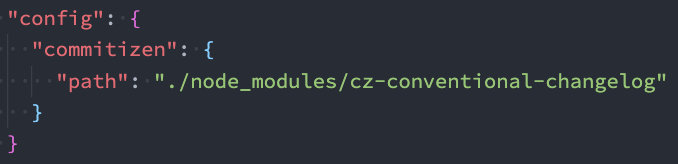
这个时候我们提交代码需要使用 npx cz:
- 第一步是选择type,本次更新的类型
| Type | 作用 |
|---|---|
| feat | 新增特性 (feature) |
| fix | 修复 Bug(bug fix) |
| docs | 修改文档 (documentation) |
| style | 代码格式修改(white-space, formatting, missing semi colons, etc) |
| refactor | 代码重构(refactor) |
| perf | 改善性能(A code change that improves performance) |
| test | 测试(when adding missing tests) |
| build | 变更项目构建或外部依赖(例如 scopes: webpack、gulp、npm 等) |
| ci | 更改持续集成软件的配置文件和 package 中的 scripts 命令,例如 scopes: Travis, Circle 等 |
| chore | 变更构建流程或辅助工具(比如更改测试环境) |
| revert | 代码回退 |
- 第二步选择本次修改的范围(作用域)

- 第三步选择提交的信息

- 第四步提交详细的描述信息

- 第五步是否是一次重大的更改

- 第六步是否影响某个open issue

我们也可以在scripts中构建一个命令来执行 cz:
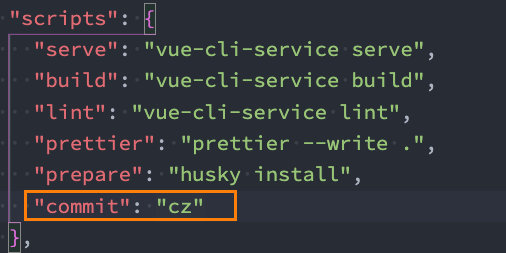
1.5.2. 代码提交验证
如果我们按照cz来规范了提交风格,但是依然有同事通过 git commit 按照不规范的格式提交应该怎么办呢?
- 我们可以通过commitlint来限制提交;
1.安装 @commitlint/config-conventional 和 @commitlint/cli
npm i @commitlint/config-conventional @commitlint/cli -D2.在根目录创建commitlint.config.js文件,配置commitlint
module.exports = { extends: ['@commitlint/config-conventional'] }3.使用husky生成commit-msg文件,验证提交信息:
npx husky add .husky/commit-msg "npx --no-install commitlint --edit $1"二. 第三方库集成
2.1. vue.config.js配置
vue.config.js有三种配置方式:
- 方式一:直接通过CLI提供给我们的选项来配置:
- 比如publicPath:配置应用程序部署的子目录(默认是
/,相当于部署在https://www.my-app.com/); - 比如outputDir:修改输出的文件夹;
- 比如publicPath:配置应用程序部署的子目录(默认是
- 方式二:通过configureWebpack修改webpack的配置:
- 可以是一个对象,直接会被合并;
- 可以是一个函数,会接收一个config,可以通过config来修改配置;
- 方式三:通过chainWebpack修改webpack的配置:
- 是一个函数,会接收一个基于 webpack-chain 的config对象,可以对配置进行修改;
const path = require('path') module.exports = { outputDir: './build', // configureWebpack: { // resolve: { // alias: { // views: '@/views' // } // } // } // configureWebpack: (config) => { // config.resolve.alias = { // '@': path.resolve(__dirname, 'src'), // views: '@/views' // } // }, chainWebpack: (config) => { config.resolve.alias.set('@', path.resolve(__dirname, 'src')).set('views', '@/views') } }2.2. vue-router集成
安装vue-router的最新版本:
npm install vue-router@next创建router对象:
import { createRouter, createWebHashHistory } from 'vue-router' import { RouteRecordRaw } from 'vue-router' const routes: RouteRecordRaw[] = [ { path: '/', redirect: '/main' }, { path: '/main', component: () => import('../views/main/main.vue') }, { path: '/login', component: () => import('../views/login/login.vue') } ] const router = createRouter({ routes, history: createWebHashHistory() }) export default router安装router:
import router from './router' createApp(App).use(router).mount('#app')在App.vue中配置跳转:
<template> <div id="app"> <router-link to="/login">登录</router-link> <router-link to="/main">首页</router-link> <router-view></router-view> </div> </template>2.3. vuex集成
安装vuex:
npm install vuex@next创建store对象:
import { createStore } from 'vuex' const store = createStore({ state() { return { name: 'coderwhy' } } }) export default store安装store:
createApp(App).use(router).use(store).mount('#app')在App.vue中使用:
<h2>{{ $store.state.name }}</h2>2.4. element-plus集成
Element Plus,一套为开发者、设计师和产品经理准备的基于 Vue 3.0 的桌面端组件库:
- 相信很多同学在Vue2中都使用过element-ui,而element-plus正是element-ui针对于vue3开发的一个UI组件库;
- 它的使用方式和很多其他的组件库是一样的,所以学会element-plus,其他类似于ant-design-vue、NaiveUI、VantUI都是差不多的;
安装element-plus
npm install element-plus2.4.1. 全局引入
一种引入element-plus的方式是全局引入,代表的含义是所有的组件和插件都会被自动注册:
import ElementPlus from 'element-plus' import 'element-plus/lib/theme-chalk/index.css' import router from './router' import store from './store' createApp(App).use(router).use(store).use(ElementPlus).mount('#app')2.4.2. 局部引入
也就是在开发中用到某个组件对某个组件进行引入:
<template> <div id="app"> <router-link to="/login">登录</router-link> <router-link to="/main">首页</router-link> <router-view></router-view> <h2>{{ $store.state.name }}</h2> <el-button>默认按钮</el-button> <el-button type="primary">主要按钮</el-button> <el-button type="success">成功按钮</el-button> <el-button type="info">信息按钮</el-button> <el-button type="warning">警告按钮</el-button> <el-button type="danger">危险按钮</el-button> </div> </template> <script lang="ts"> import { defineComponent } from 'vue' import { ElButton } from 'element-plus' export default defineComponent({ name: 'App', components: { ElButton } }) </script> <style lang="less"> </style>但是我们会发现是没有对应的样式的,引入样式有两种方式:
- 全局引用样式(像之前做的那样);
- 局部引用样式(通过babel的插件);
1.安装babel的插件:
npm install babel-plugin-import -D2.配置babel.config.js
module.exports = { plugins: [ [ 'import', { libraryName: 'element-plus', customStyleName: (name) => { return `element-plus/lib/theme-chalk/${name}.css` } } ] ], presets: ['@vue/cli-plugin-babel/preset'] }但是这里依然有个弊端:
- 这些组件我们在多个页面或者组件中使用的时候,都需要导入并且在components中进行注册;
- 所以我们可以将它们在全局注册一次;
import { ElButton, ElTable, ElAlert, ElAside, ElAutocomplete, ElAvatar, ElBacktop, ElBadge, } from 'element-plus' const app = createApp(App) const components = [ ElButton, ElTable, ElAlert, ElAside, ElAutocomplete, ElAvatar, ElBacktop, ElBadge ] for (const cpn of components) { app.component(cpn.name, cpn) }2.5. axios集成
安装axios:
npm install axios封装axios:
import axios, { AxiosInstance, AxiosRequestConfig, AxiosResponse } from 'axios' import { Result } from './types' import { useUserStore } from '/@/store/modules/user' class HYRequest { private instance: AxiosInstance private readonly options: AxiosRequestConfig constructor(options: AxiosRequestConfig) { this.options = options this.instance = axios.create(options) this.instance.interceptors.request.use( (config) => { const token = useUserStore().getToken if (token) { config.headers.Authorization = `Bearer ${token}` } return config }, (err) => { return err } ) this.instance.interceptors.response.use( (res) => { // 拦截响应的数据 if (res.data.code === 0) { return res.data.data } return res.data }, (err) => { return err } ) } request<T = any>(config: AxiosRequestConfig): Promise<T> { return new Promise((resolve, reject) => { this.instance .request<any, AxiosResponse<Result<T>>>(config) .then((res) => { resolve((res as unknown) as Promise<T>) }) .catch((err) => { reject(err) }) }) } get<T = any>(config: AxiosRequestConfig): Promise<T> { return this.request({ ...config, method: 'GET' }) } post<T = any>(config: AxiosRequestConfig): Promise<T> { return this.request({ ...config, method: 'POST' }) } patch<T = any>(config: AxiosRequestConfig): Promise<T> { return this.request({ ...config, method: 'PATCH' }) } delete<T = any>(config: AxiosRequestConfig): Promise<T> { return this.request({ ...config, method: 'DELETE' }) } } export default HYRequest2.6. VSCode配置
{ "workbench.iconTheme": "vscode-great-icons", "editor.fontSize": 17, "eslint.migration.2_x": "off", "[javascript]": { "editor.defaultFormatter": "dbaeumer.vscode-eslint" }, "files.autoSave": "afterDelay", "editor.tabSize": 2, "terminal.integrated.fontSize": 16, "editor.renderWhitespace": "all", "editor.quickSuggestions": { "strings": true }, "dhttps://markdown.cztcode.com/008i3skNgy1gsqwar8xp1j30fq00ya9x.jpgebug.console.fontSize": 15, "window.zoomLevel": 1, "emmet.includeLanguages": { "javascript": "javascriptreact" }, "explorer.confirmDragAndDrop": false, "workbench.tree.indent": 16, "javascript.updateImportsOnFileMove.enabled": "always", "editor.wordWrap": "on", "path-intellisense.mappings": { "@": "${workspaceRoot}/src" }, "hediet.vscode-drawio.local-storage": "eyIuZHJhd2lvLWNvbmZpZyI6IntcImxhbmd1YWdlXCI6XCJcIixcImN1c3RvbUZvbnRzXCI6W10sXCJsaWJyYXJpZXNcIjpcImdlbmVyYWw7YmFzaWM7YXJyb3dzMjtmbG93Y2hhcnQ7ZXI7c2l0ZW1hcDt1bWw7YnBtbjt3ZWJpY29uc1wiLFwiY3VzdG9tTGlicmFyaWVzXCI6W1wiTC5zY3JhdGNocGFkXCJdLFwicGx1Z2luc1wiOltdLFwicmVjZW50Q29sb3JzXCI6W1wiRkYwMDAwXCIsXCIwMENDNjZcIixcIm5vbmVcIixcIkNDRTVGRlwiLFwiNTI1MjUyXCIsXCJGRjMzMzNcIixcIjMzMzMzM1wiLFwiMzMwMDAwXCIsXCIwMENDQ0NcIixcIkZGNjZCM1wiLFwiRkZGRkZGMDBcIl0sXCJmb3JtYXRXaWR0aFwiOjI0MCxcImNyZWF0ZVRhcmdldFwiOmZhbHNlLFwicGFnZUZvcm1hdFwiOntcInhcIjowLFwieVwiOjAsXCJ3aWR0aFwiOjExNjksXCJoZWlnaHRcIjoxNjU0fSxcInNlYXJjaFwiOnRydWUsXCJzaG93U3RhcnRTY3JlZW5cIjp0cnVlLFwiZ3JpZENvbG9yXCI6XCIjZDBkMGQwXCIsXCJkYXJrR3JpZENvbG9yXCI6XCIjNmU2ZTZlXCIsXCJhdXRvc2F2ZVwiOnRydWUsXCJyZXNpemVJbWFnZXNcIjpudWxsLFwib3BlbkNvdW50ZXJcIjowLFwidmVyc2lvblwiOjE4LFwidW5pdFwiOjEsXCJpc1J1bGVyT25cIjpmYWxzZSxcInVpXCI6XCJcIn0ifQ==", "hediet.vscode-drawio.theme": "Kennedy", "editor.fontFamily": "Source Code Pro, 'Courier New', monospace", "editor.smoothScrolling": true, "editor.formatOnSave": true, "editor.defaultFormatter": "esbenp.prettier-vscode", "workbench.colorTheme": "Atom One Dark", "vetur.completion.autoImport": false, "security.workspace.trust.untrustedFiles": "open", "eslint.lintTask.enable": true, "eslint.alwaysShowStatus": true, "editor.codeActionsOnSave": { "source.fixAll.eslint": true } }